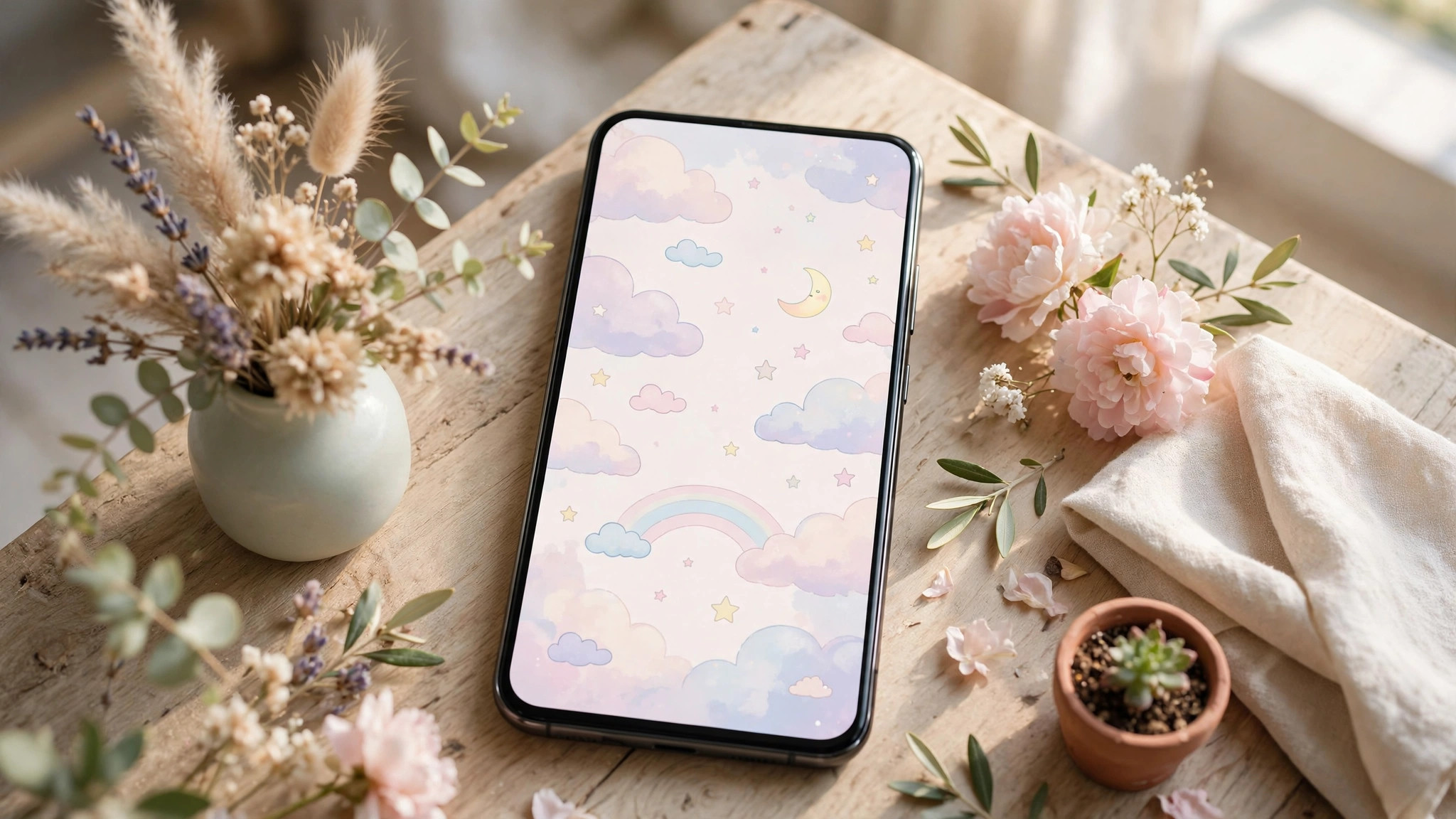
Found the perfect wallpaper but not sure how to set it on your iPhone? It takes less than a minute. Here’s exactly how to do it.
Method 1: From the Photos app
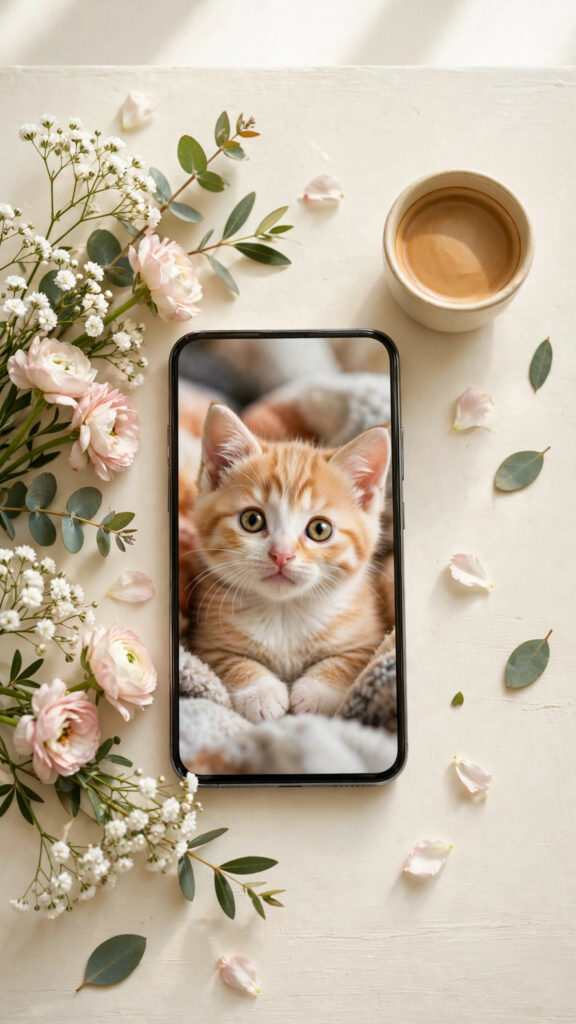
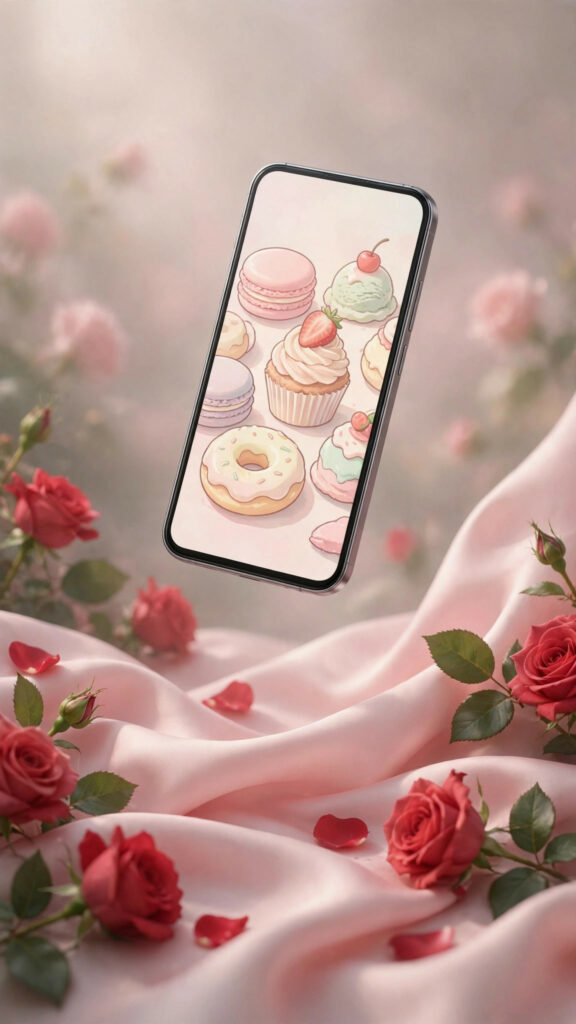
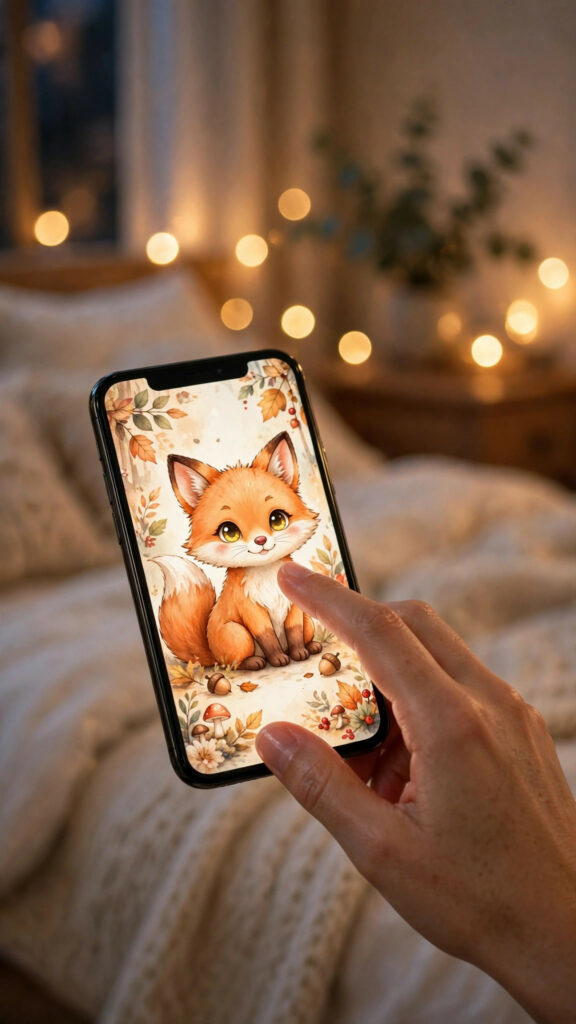
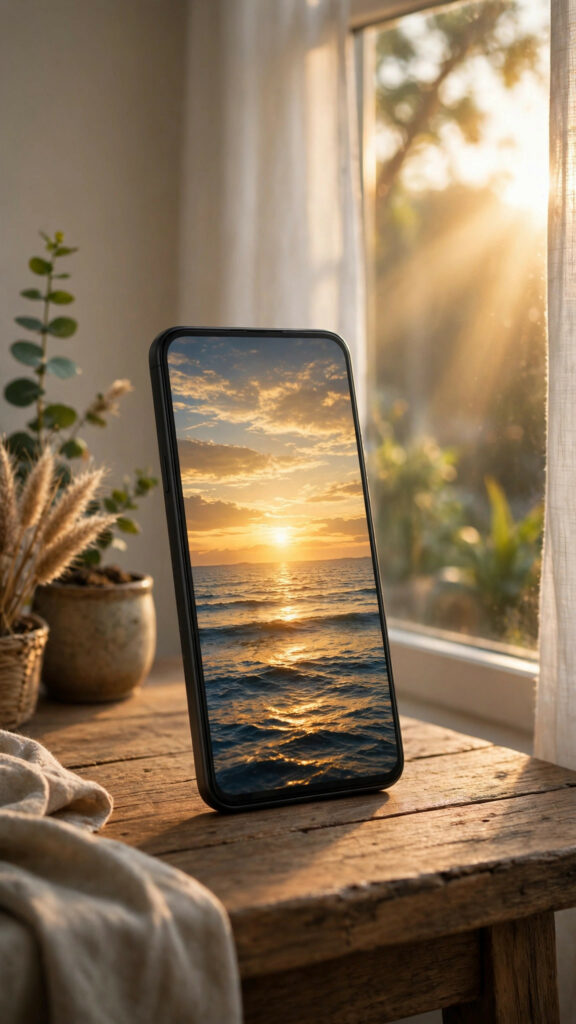
- Download the wallpaper from our site — it saves to your Photos app.
- Open Photos and tap the image.
- Tap the Share button, then tap “Use as Wallpaper.”
- Pinch to zoom and position it just right.
- Tap “Add,” then choose “Set as Wallpaper Pair” or customize your Home Screen separately.
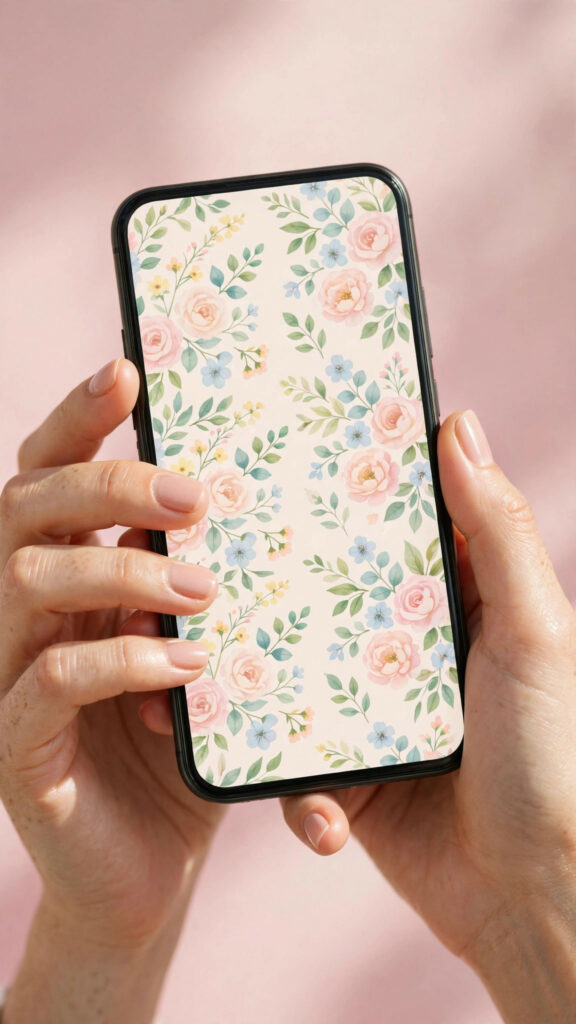
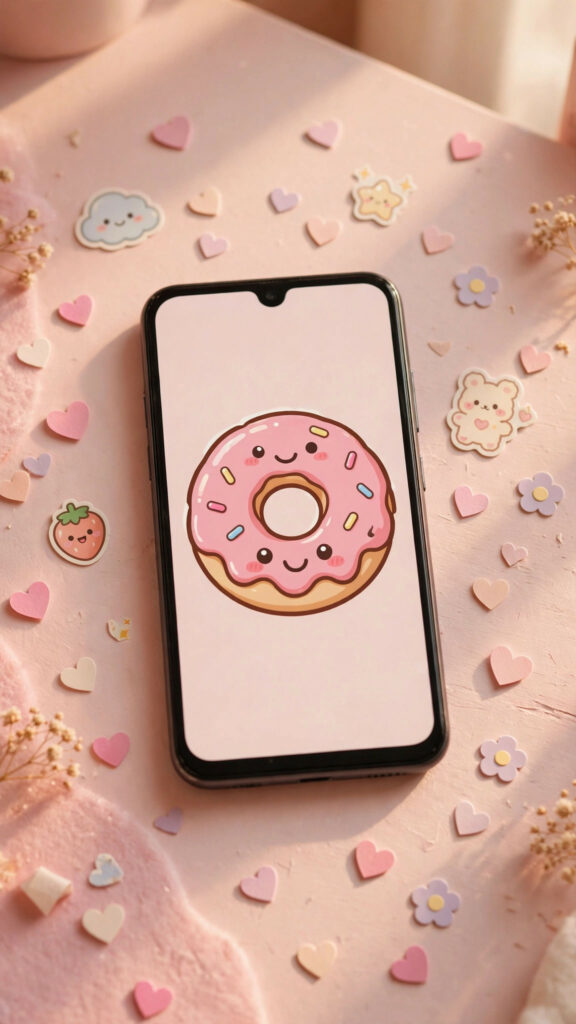
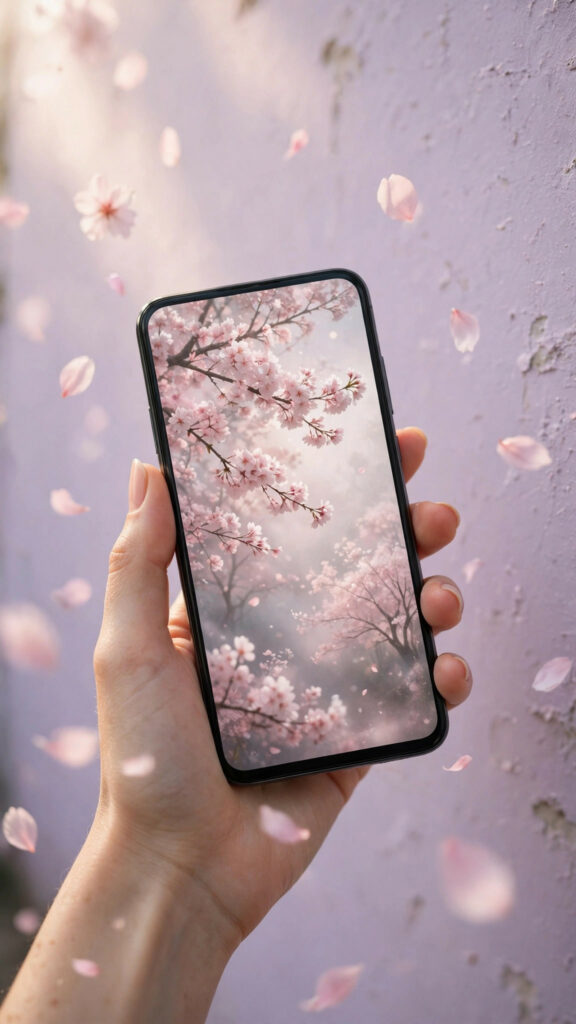
Method 2: From Settings
- Open Settings and tap “Wallpaper.”
- Tap “Add New Wallpaper.”
- Tap “Photos” and choose your downloaded image.
- Adjust, tap “Add,” and pick your Home Screen option.
Tips for the perfect fit
- Use the highest resolution available so the image stays sharp.
- If your clock or widgets cover part of the image, reposition it so the main subject sits below the time.
- Try Depth Effect with images that have a clear subject — it looks fantastic.
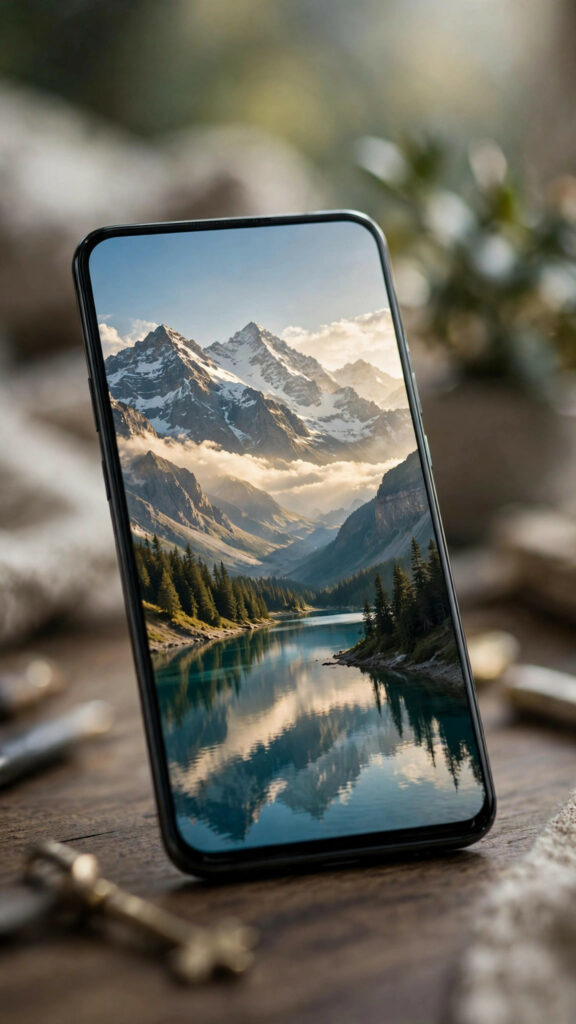
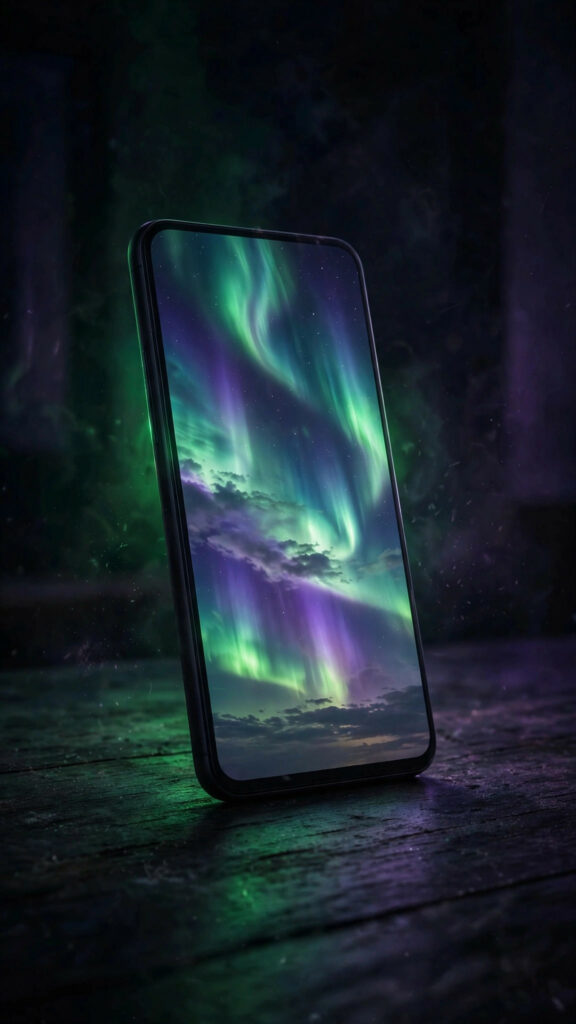
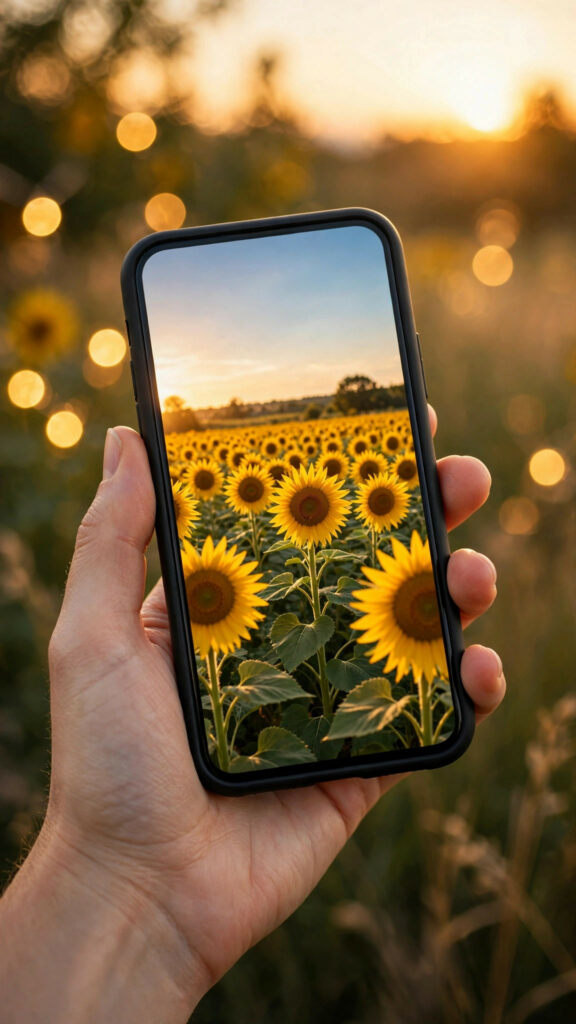
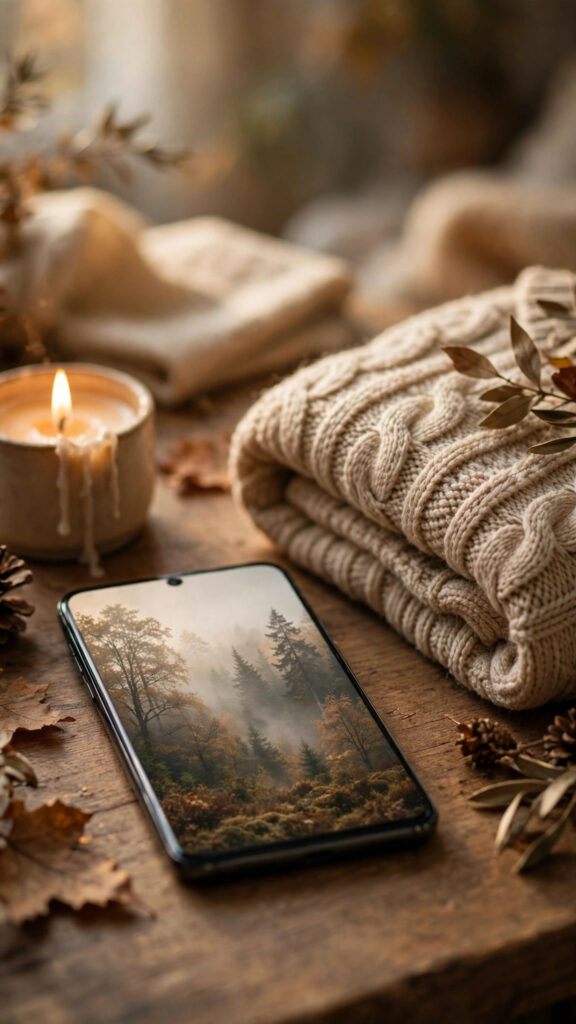
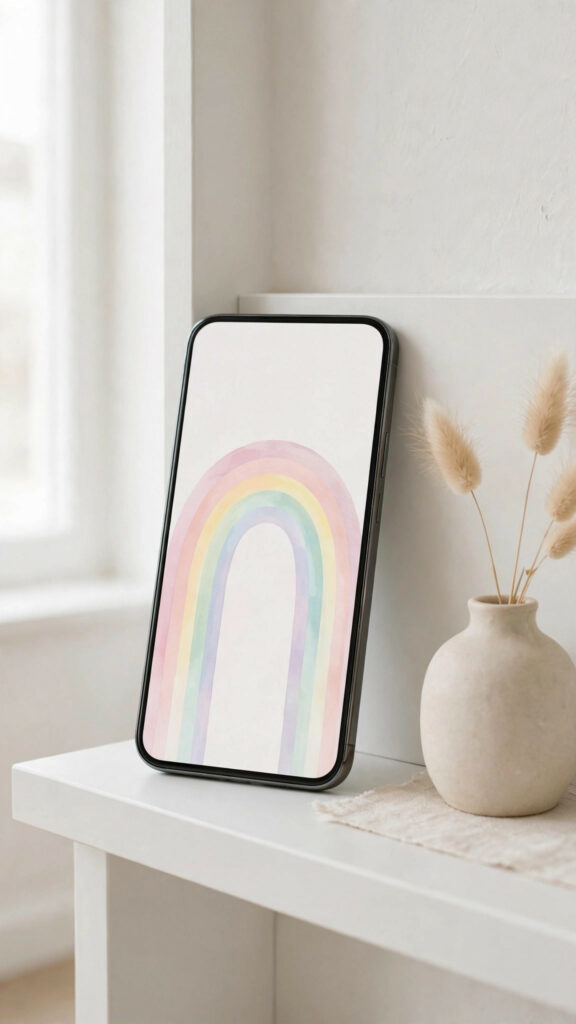
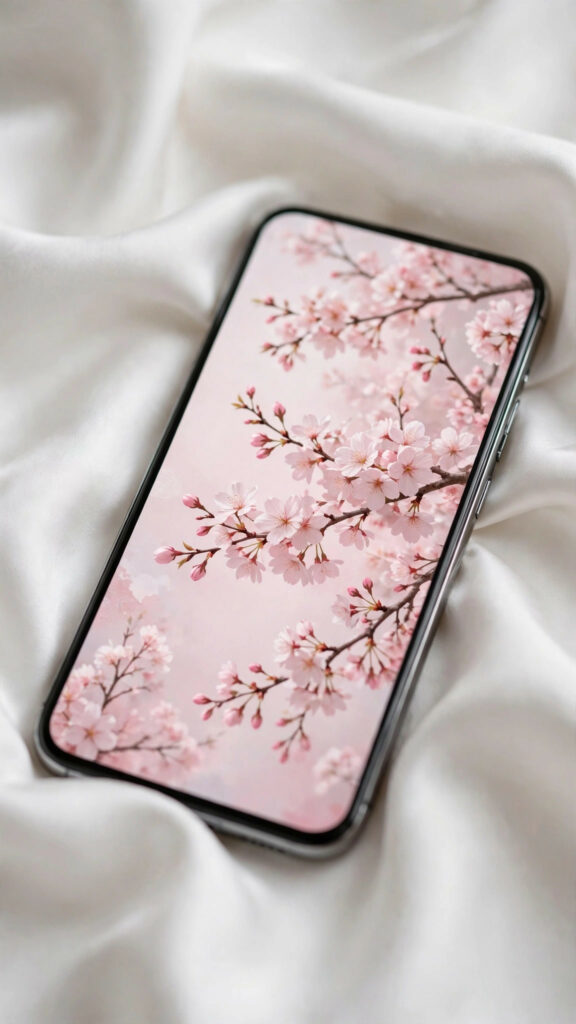
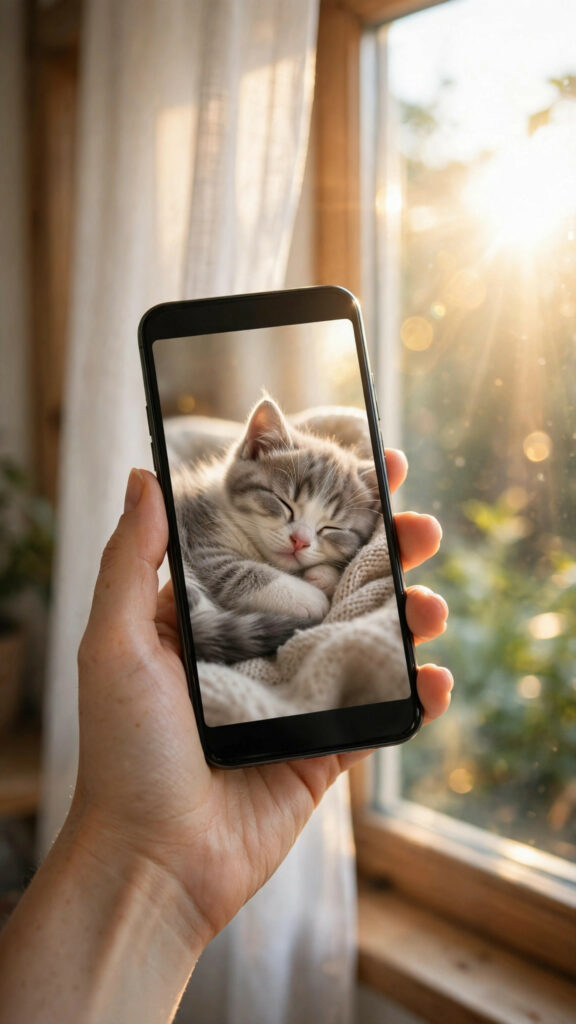
Download these wallpapers



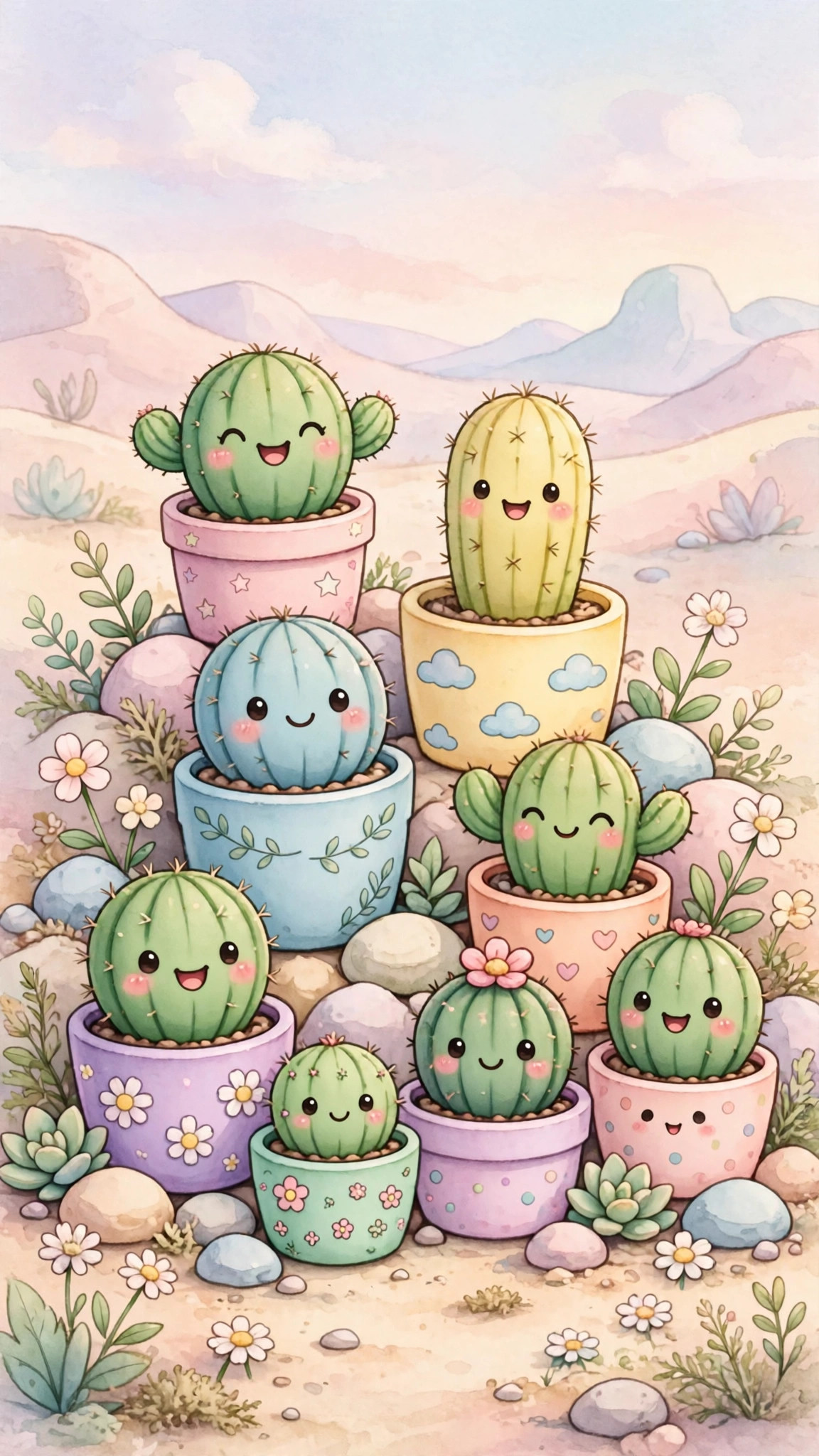
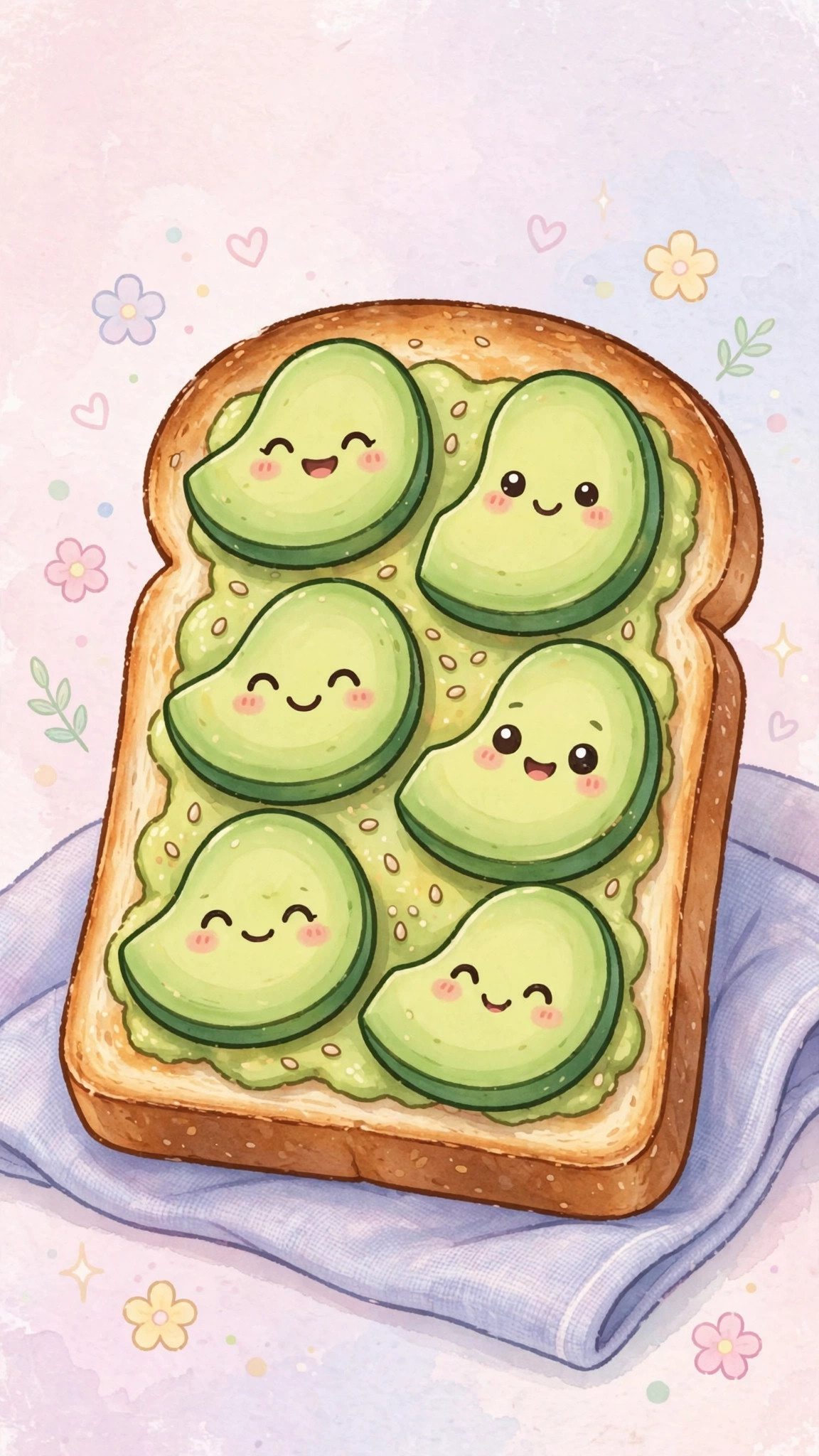

That’s it! Your iPhone now has a fresh new look. Come back anytime you want a change — our gallery is always growing.