Android gives you tons of ways to personalize your phone, and changing your wallpaper is the easiest win. Here’s how to do it, plus a few tricks to make it look amazing.
The quick way
- Long-press an empty spot on your Home Screen.
- Tap “Wallpaper & style” (wording varies slightly by brand).
- Tap “Change wallpaper” and choose “My photos.”
- Pick your downloaded wallpaper, adjust the crop, and tap the checkmark.
- Choose Home screen, Lock screen, or both.
Here is what each step looks like on screen:
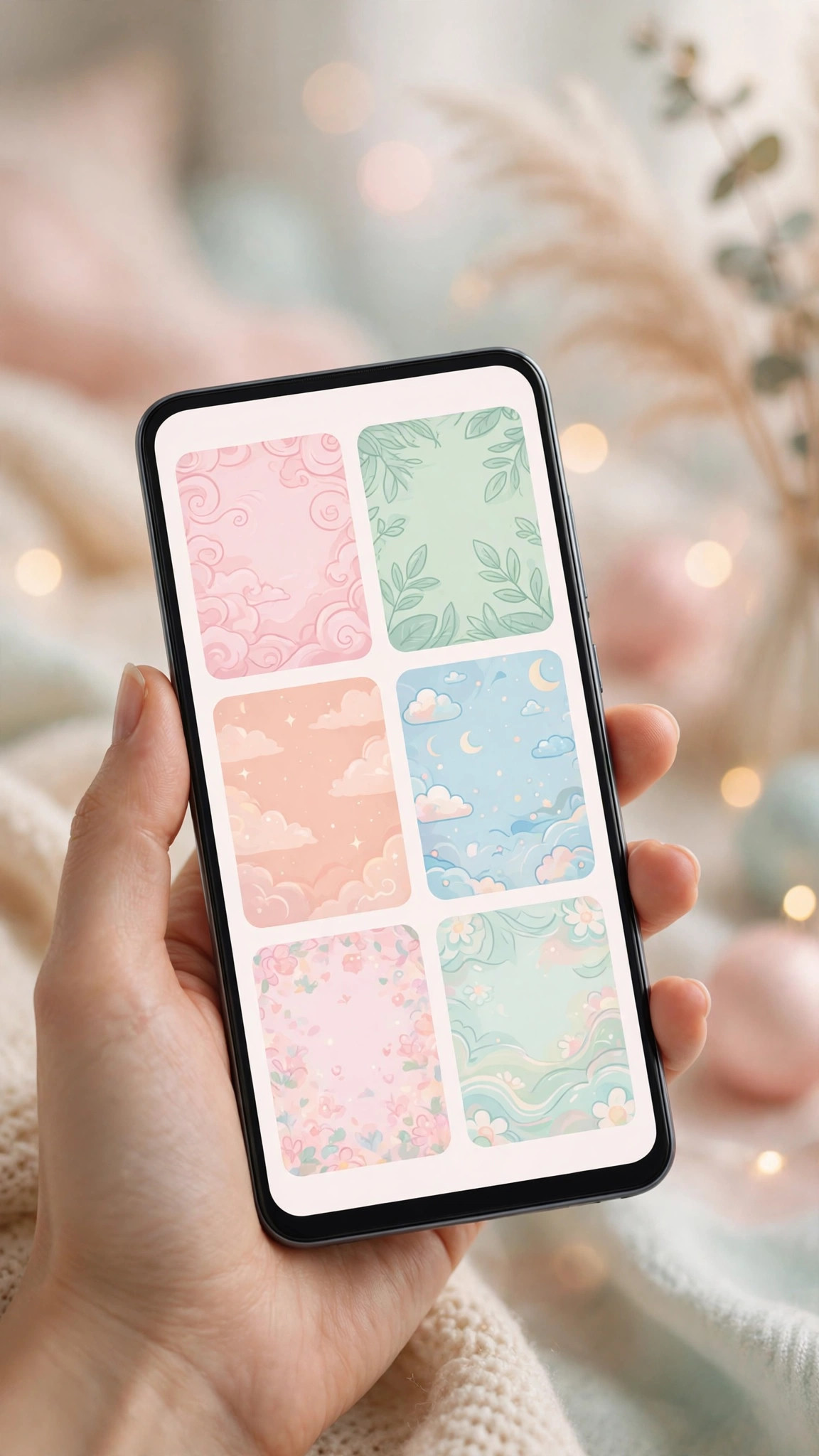
Pick any photo from your gallery once you reach the wallpaper picker.
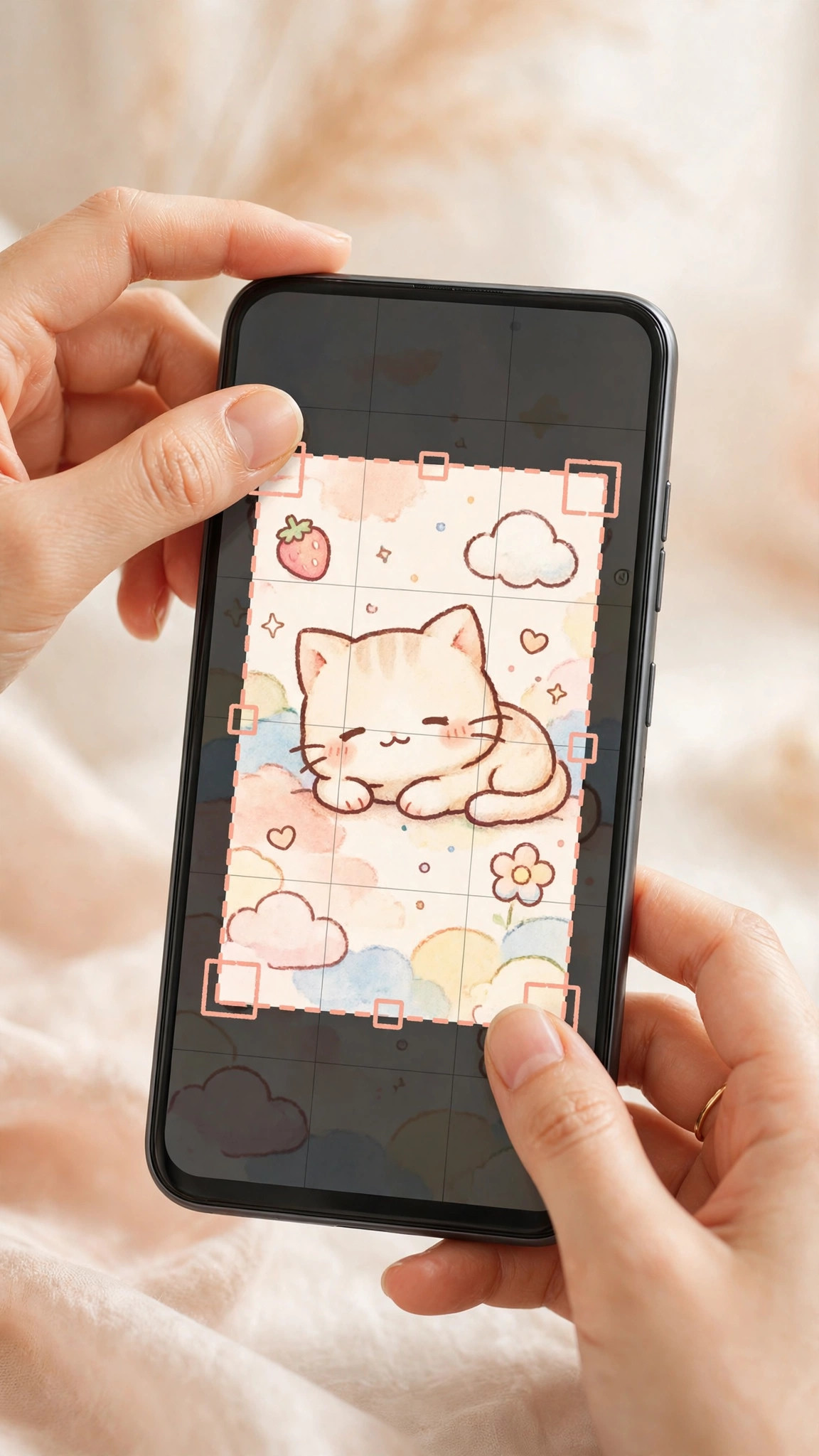
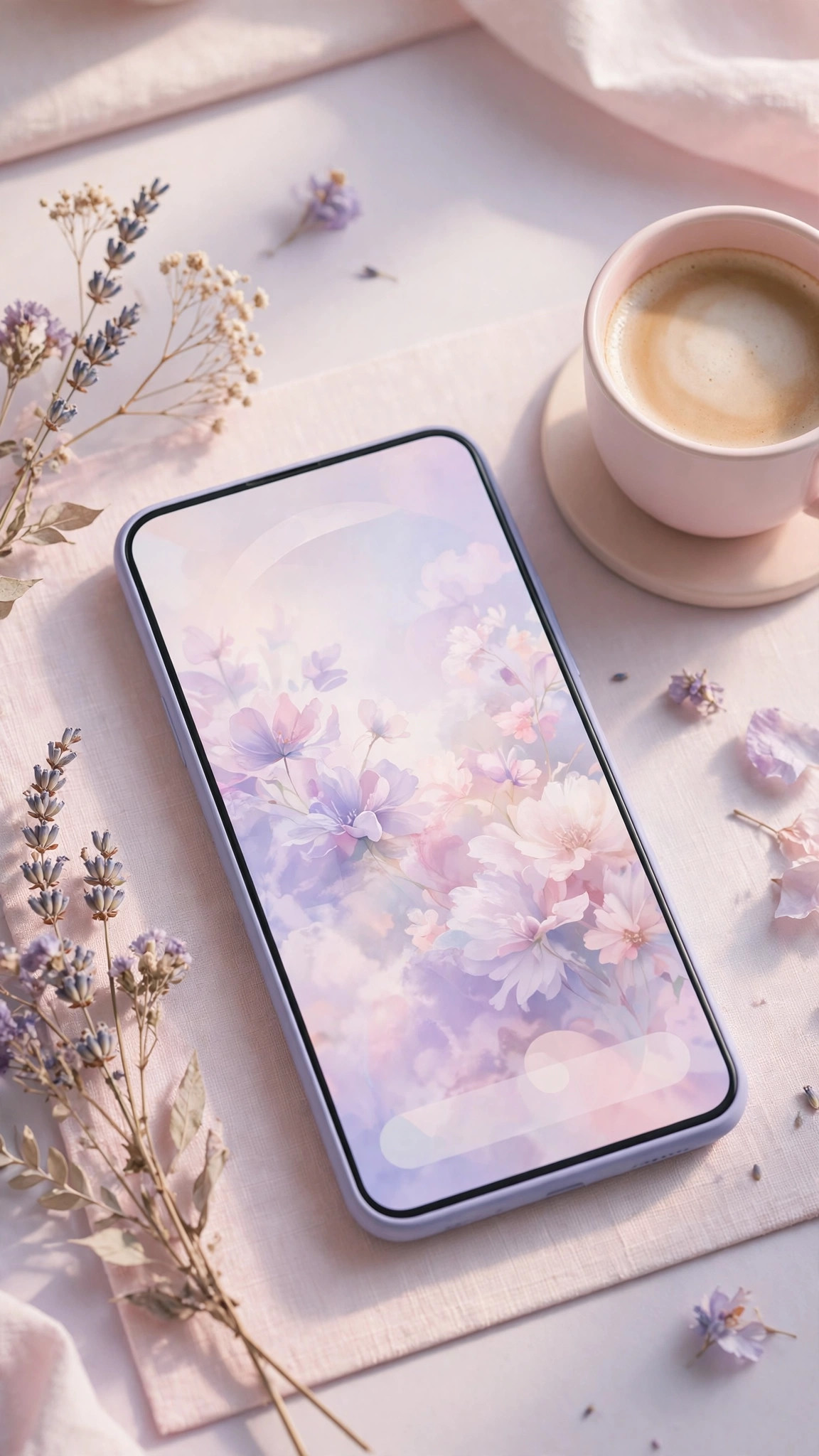
Once you have chosen your image, the rest takes seconds.
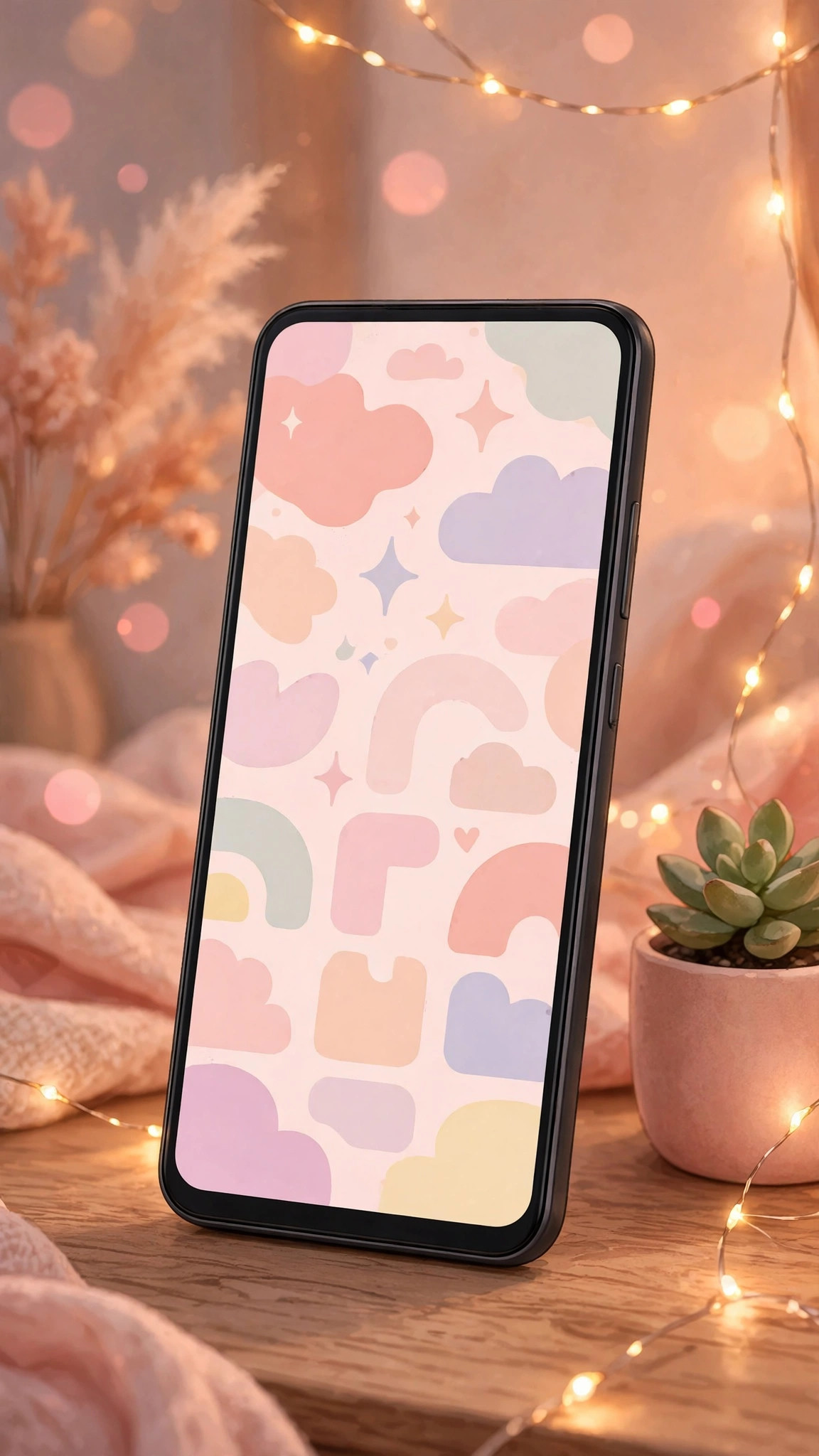
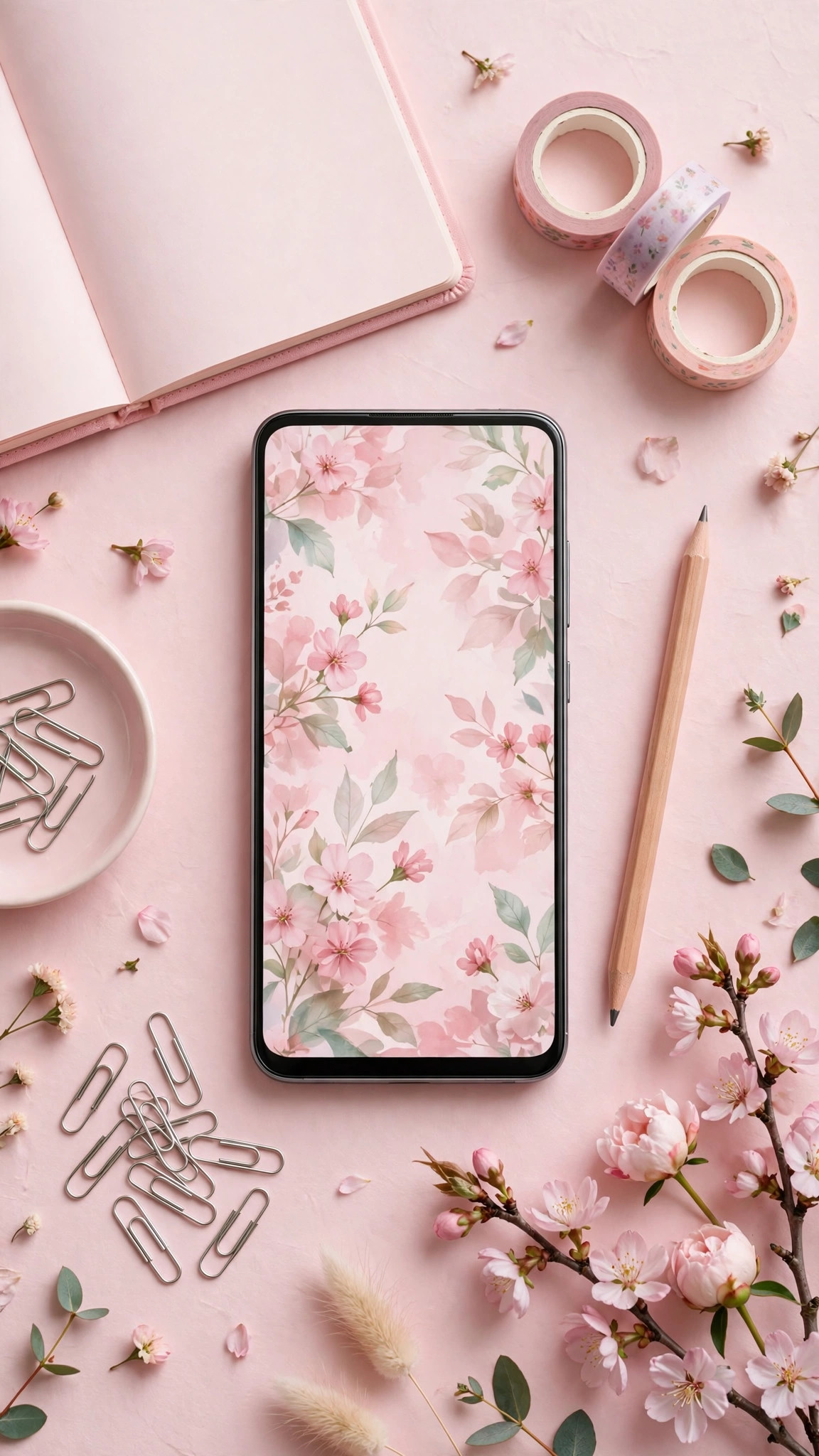
And that is it — your new look is ready.
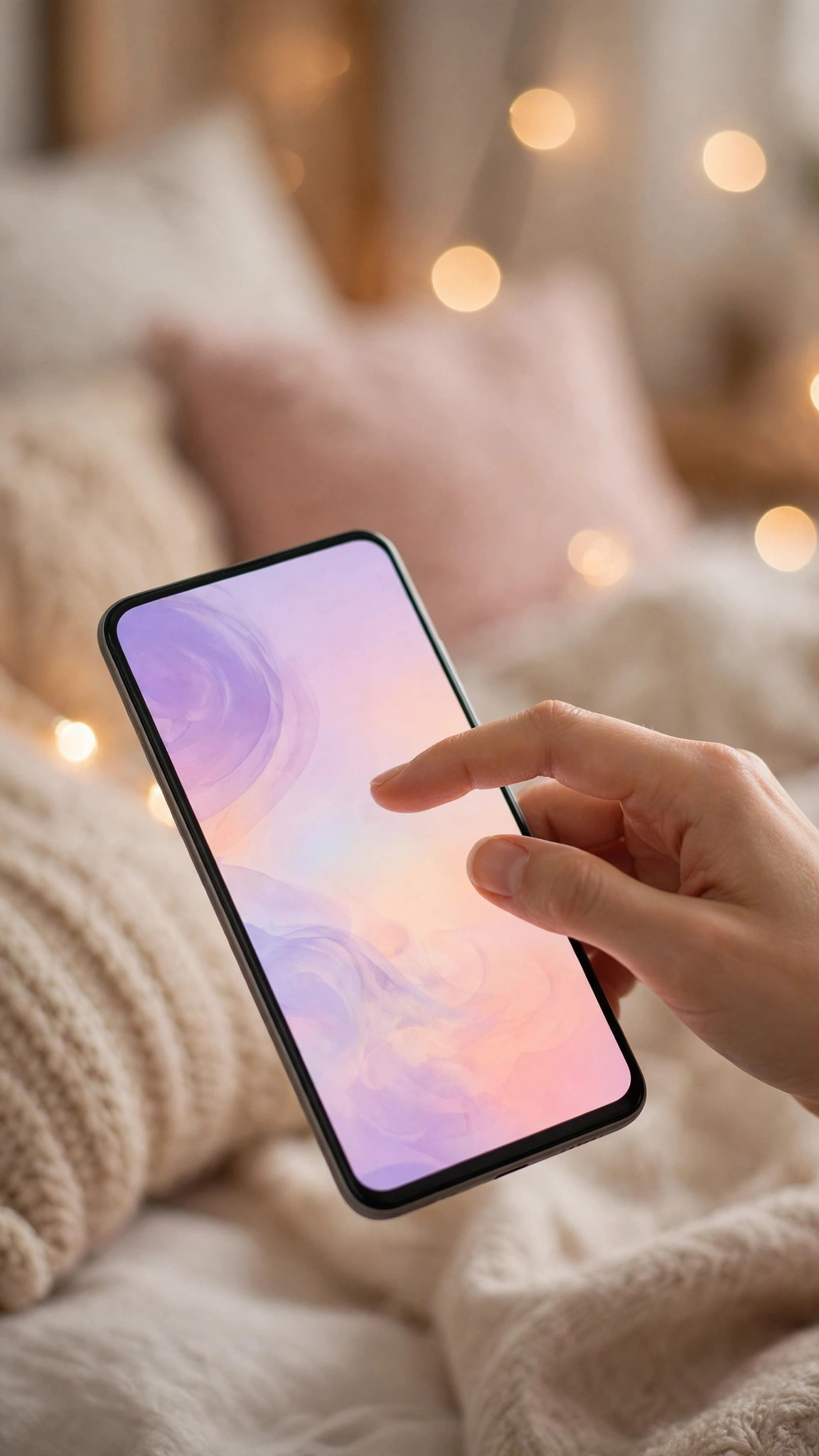
From the Gallery app
Open the image, tap the three-dot menu, and select “Set as wallpaper.” Done.
The Gallery route is even shorter — here it is step by step:
Use the three-dot menu to find the wallpaper option.
Confirm where you want it, and you are done.
Pro tips
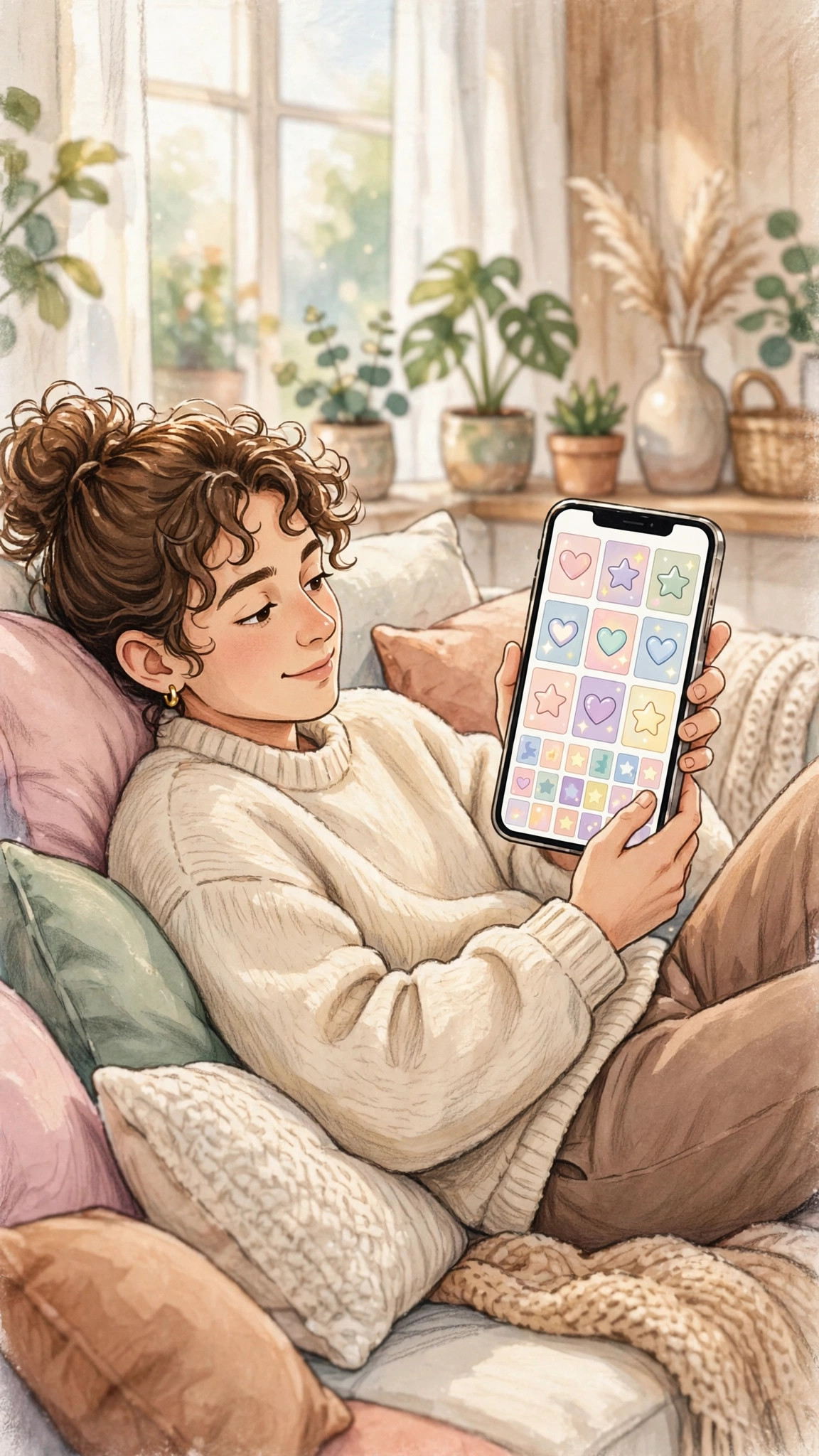
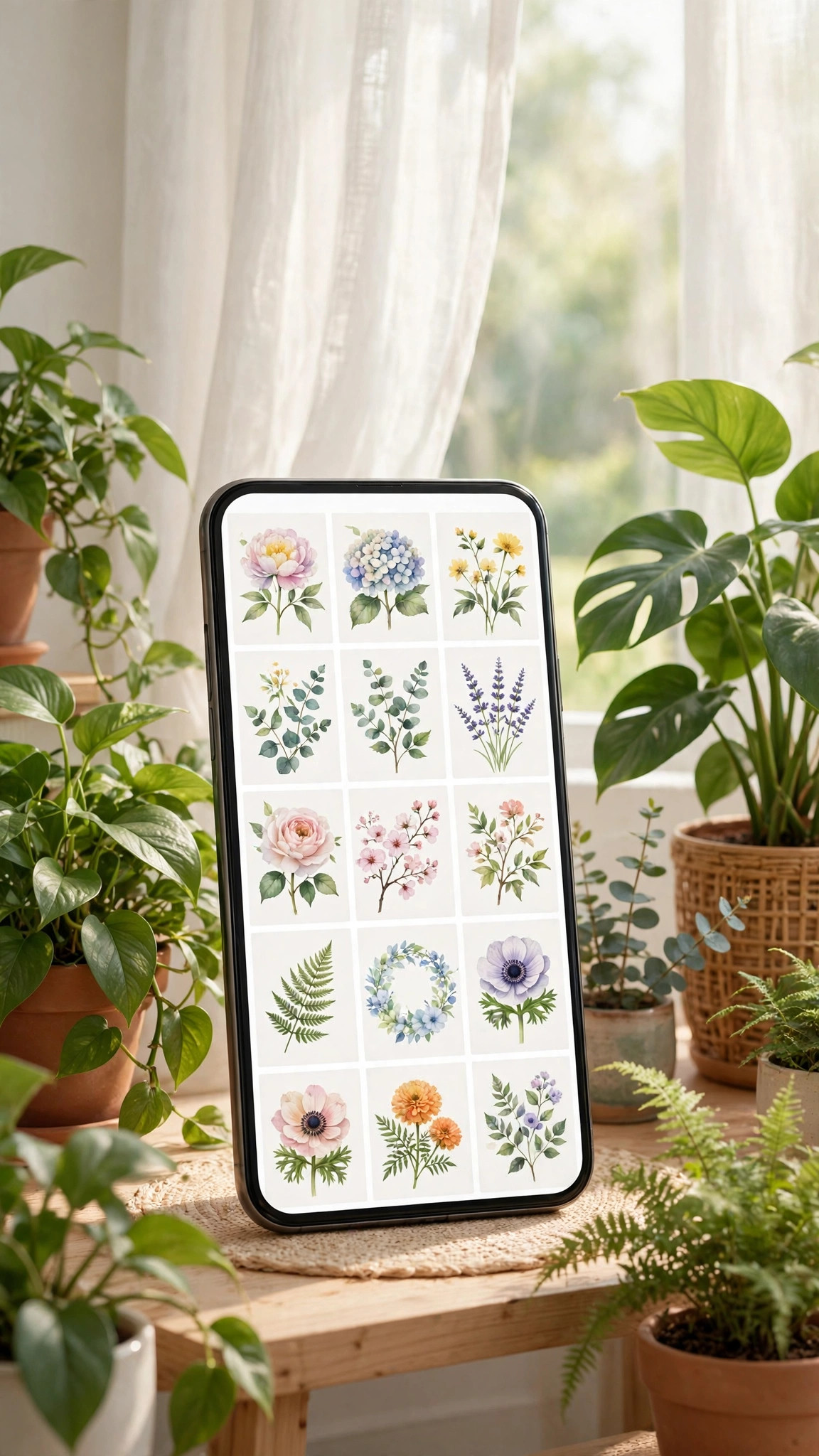
- Match your theme: Pair a pastel wallpaper with a light theme, or a dark wallpaper with dark mode for a polished look.
- Try live wallpapers: Some launchers let you add subtle motion — great with gradient or nature images.
- Keep icons readable: Busy wallpapers can hide app labels. If yours is detailed, use it on the lock screen and keep the home screen simpler.
- Rotate regularly: Set a weekly reminder to swap wallpapers. It’s a tiny habit that keeps your phone feeling fresh.
A few visual examples of these tips in action:
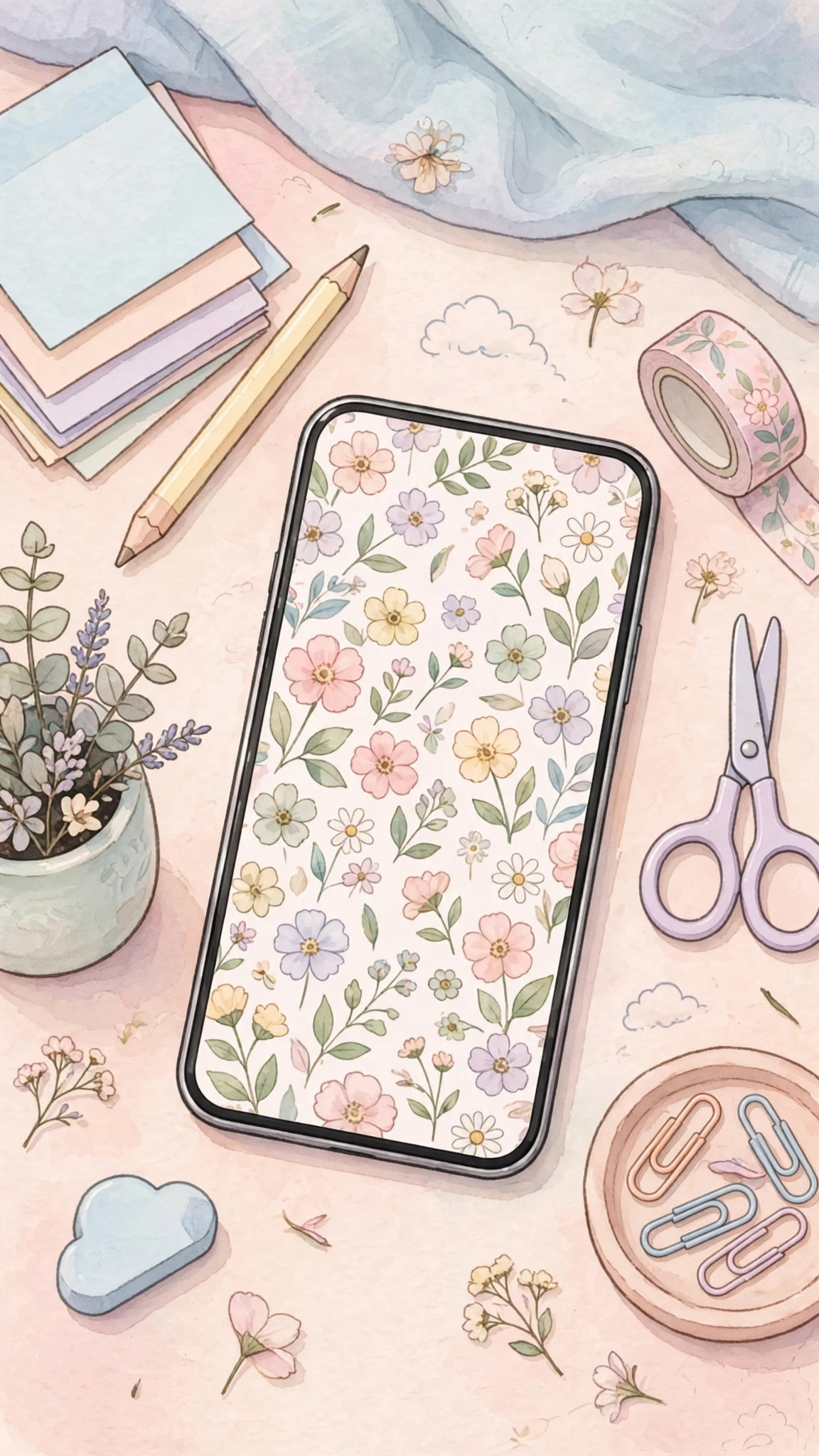
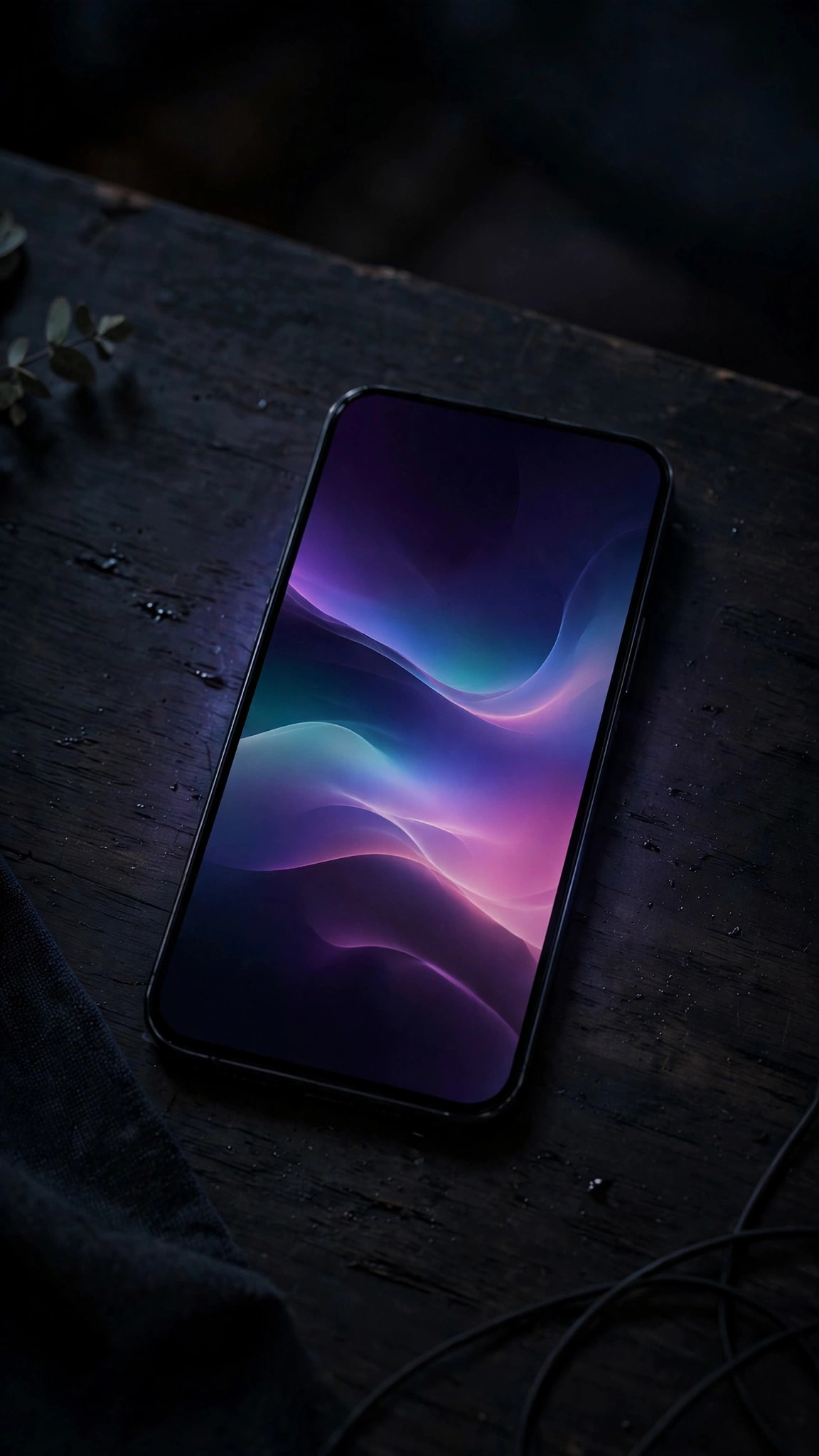
Matching your theme makes everything feel more polished.
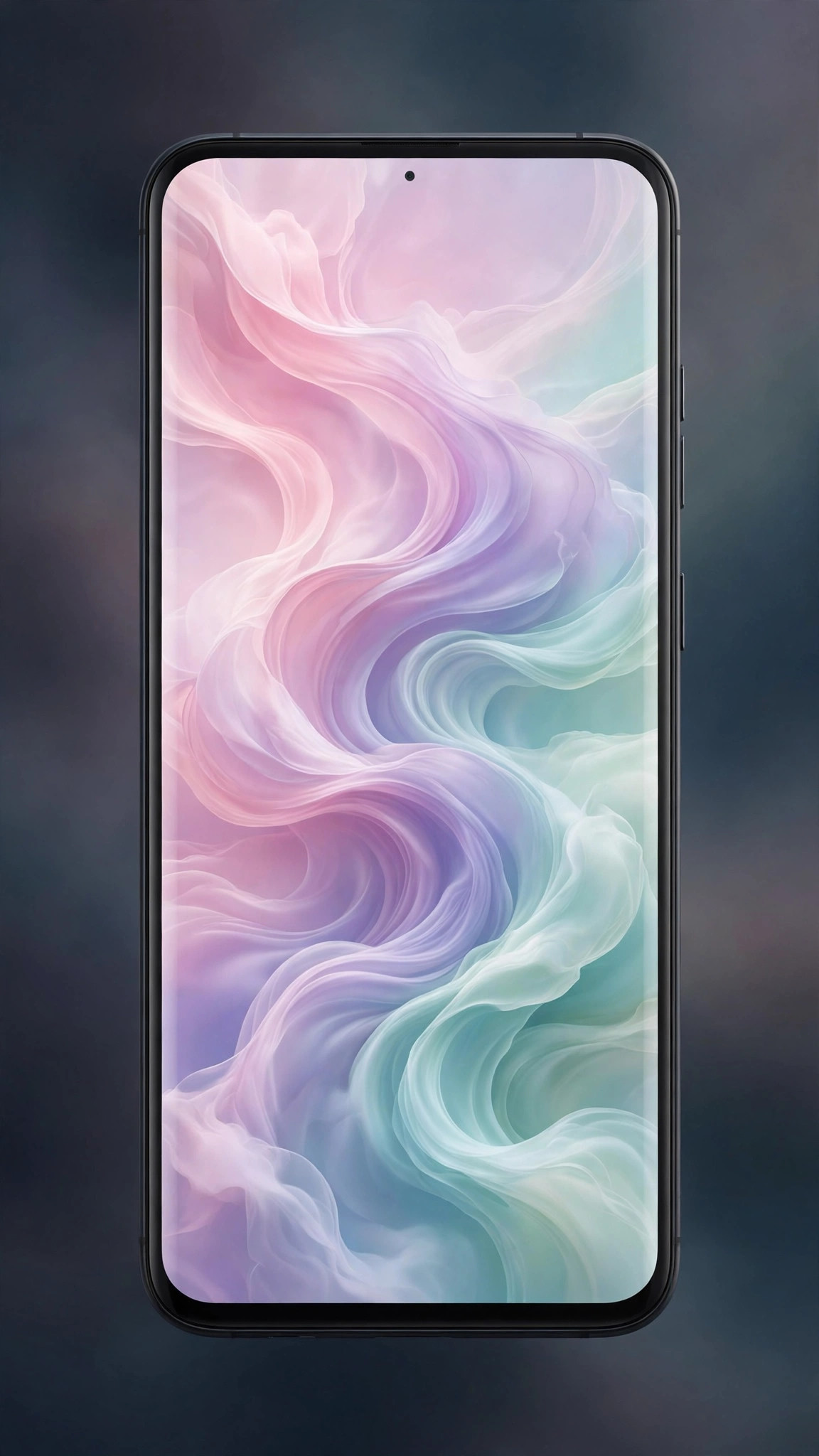
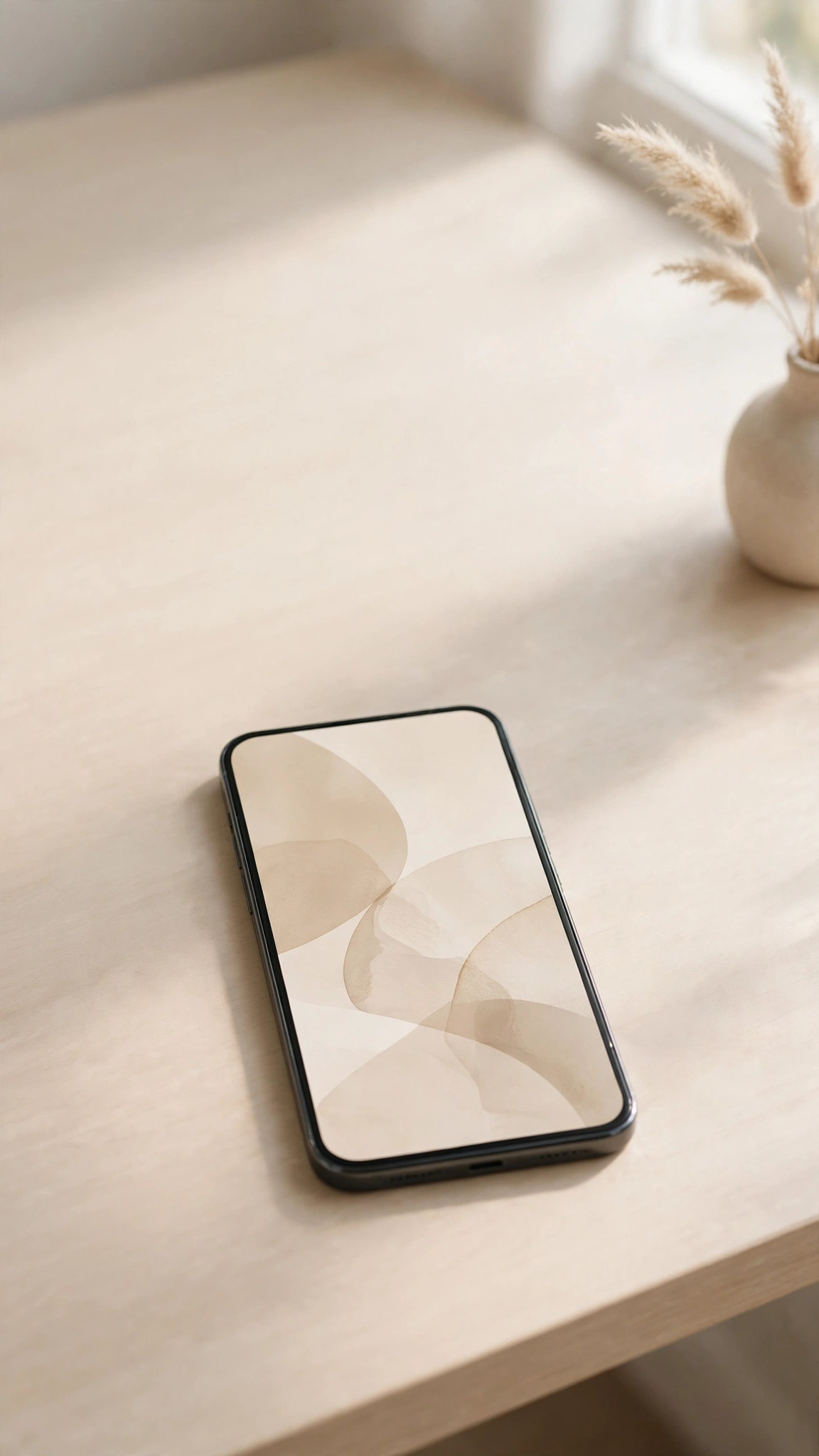
Keep things readable and your apps stay easy to find.
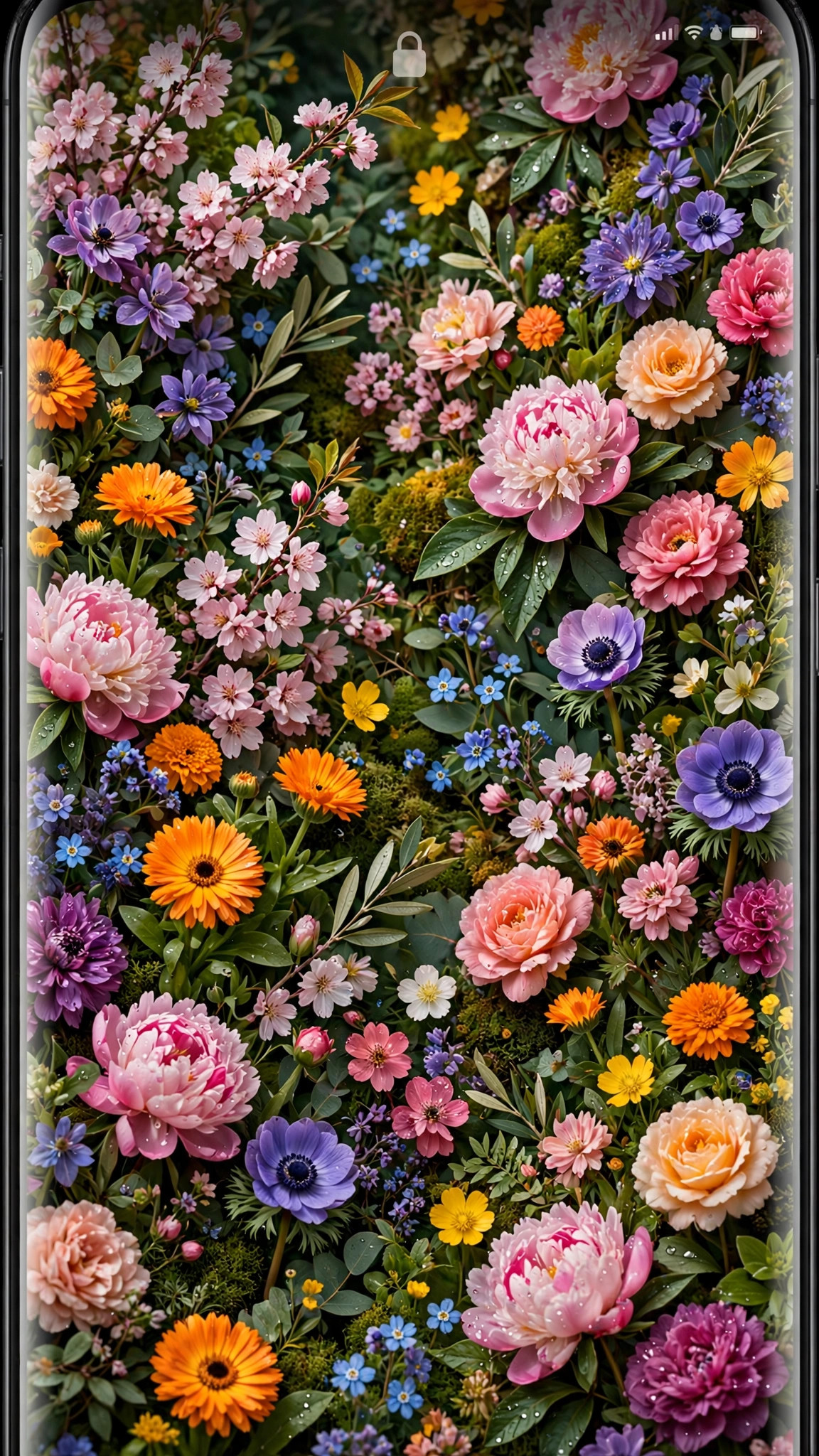
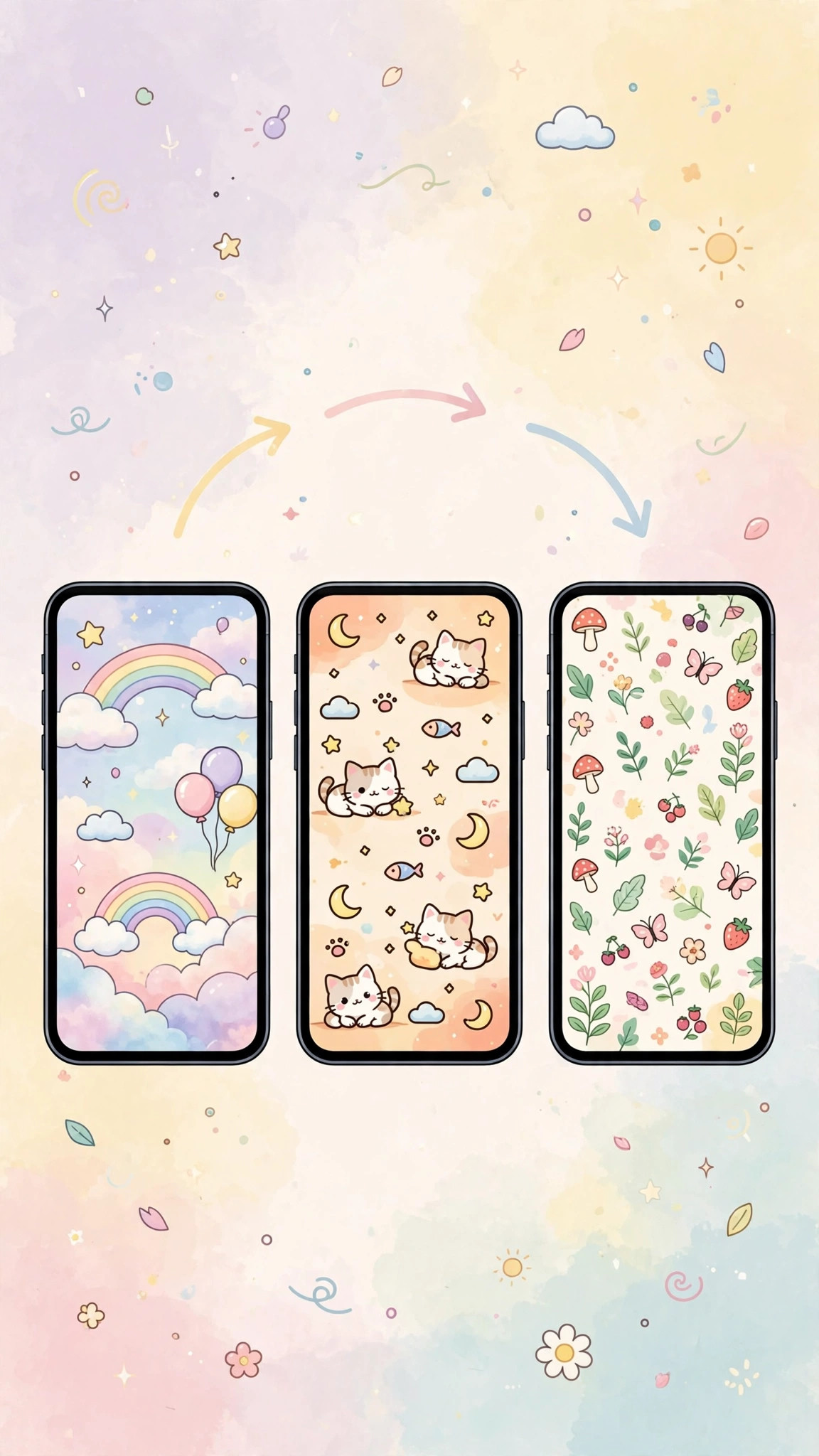
Swap regularly to keep your phone feeling fresh.
Download these wallpapers












More free wallpapers to try:
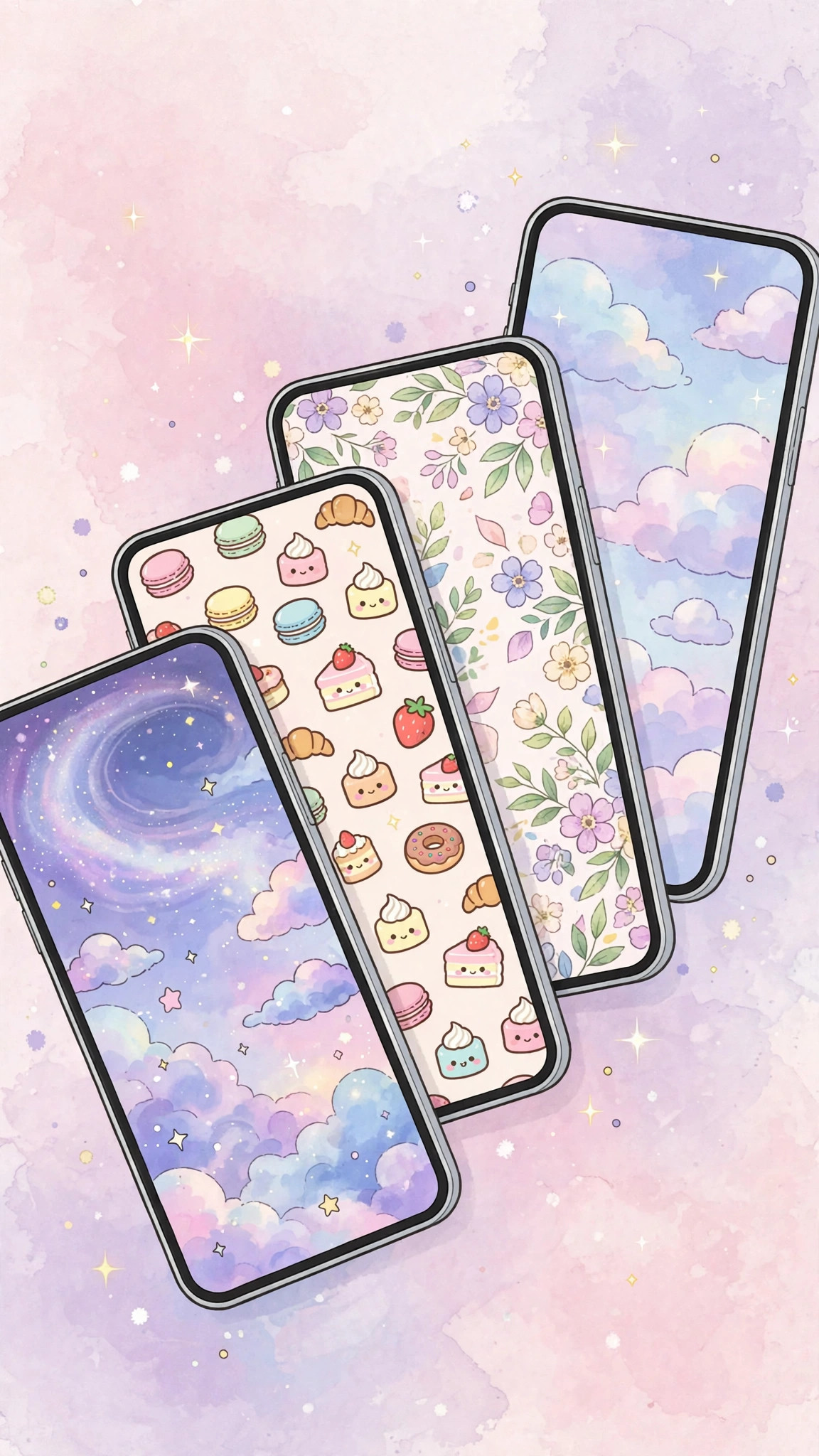
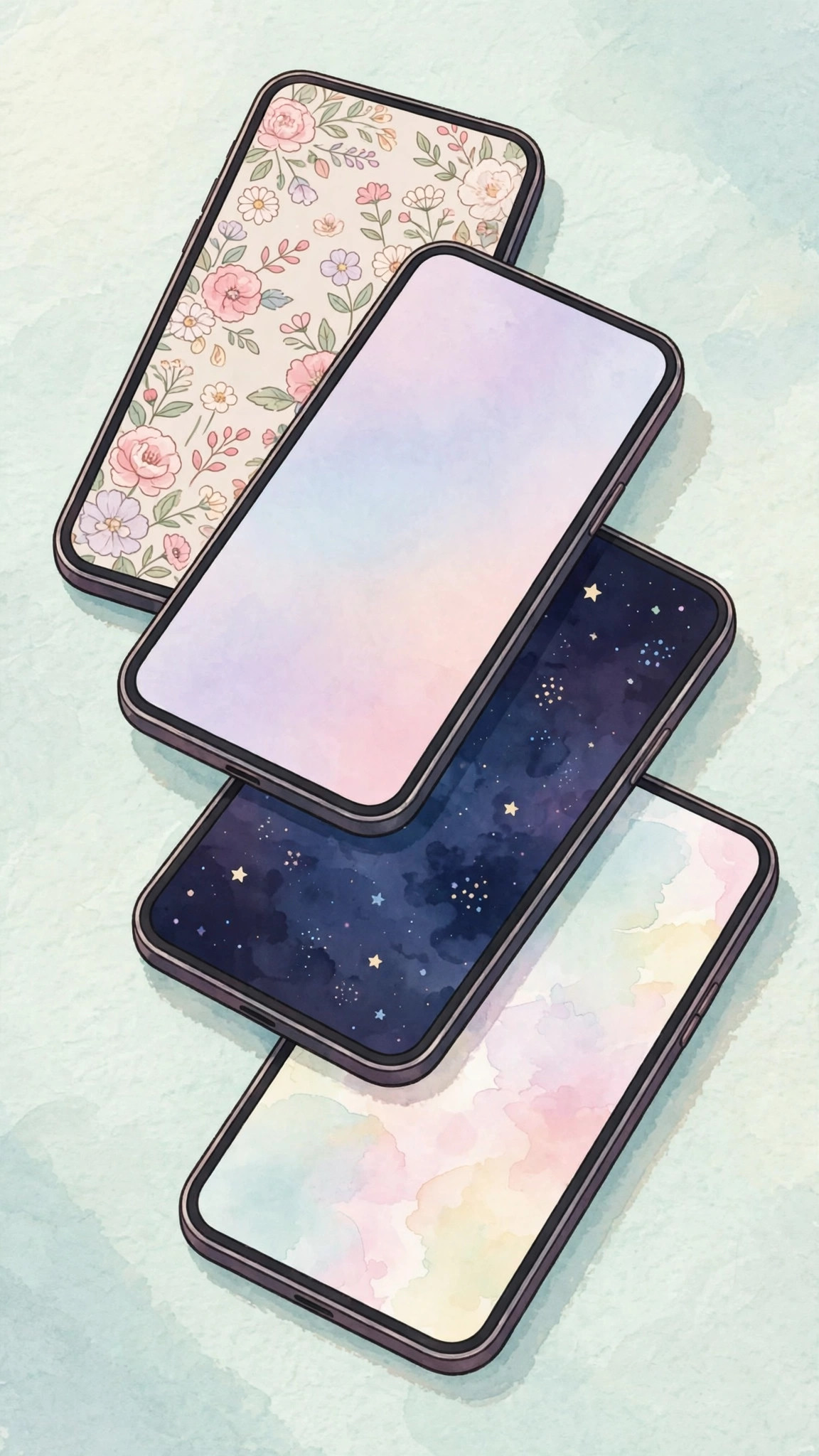
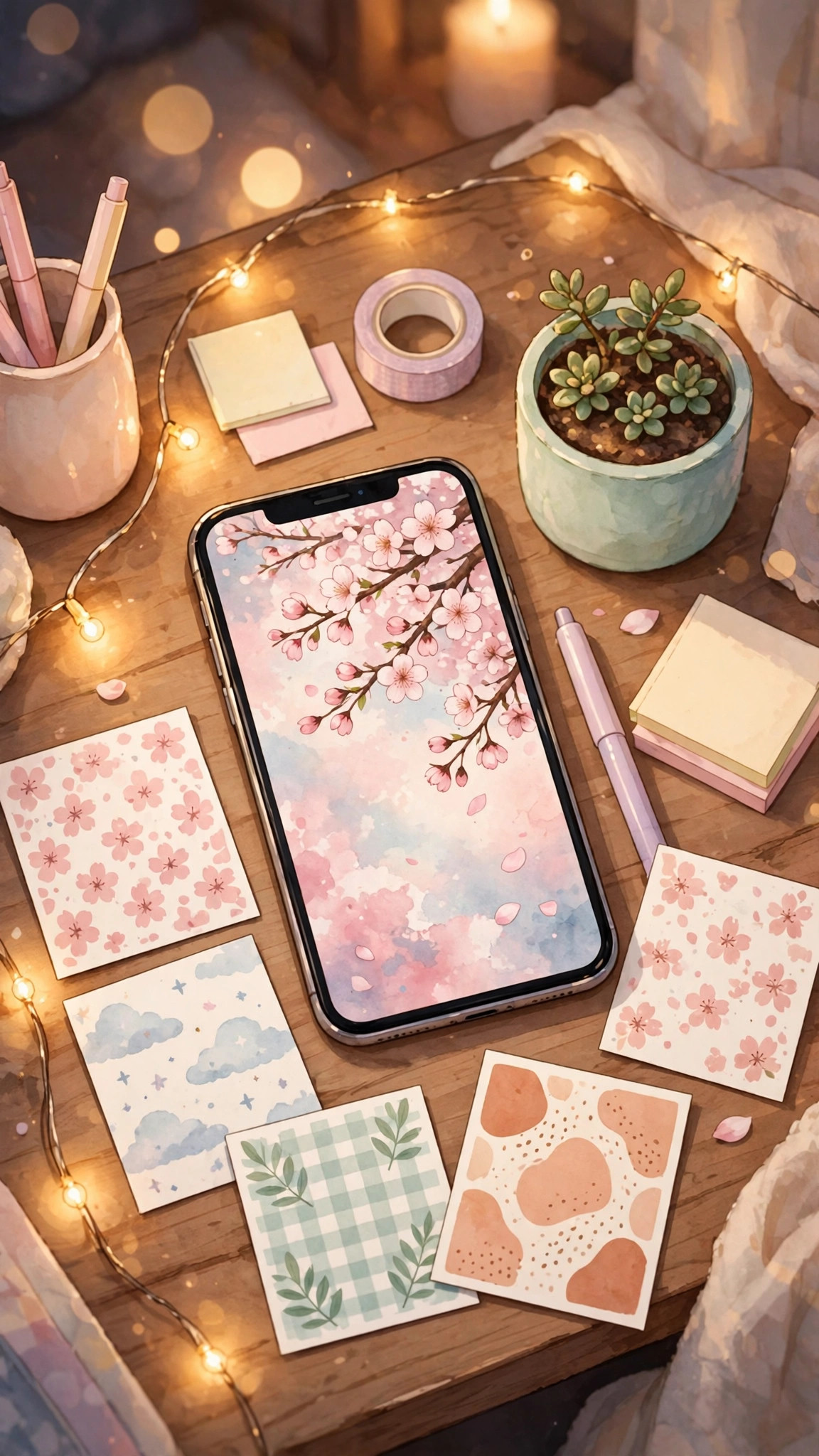
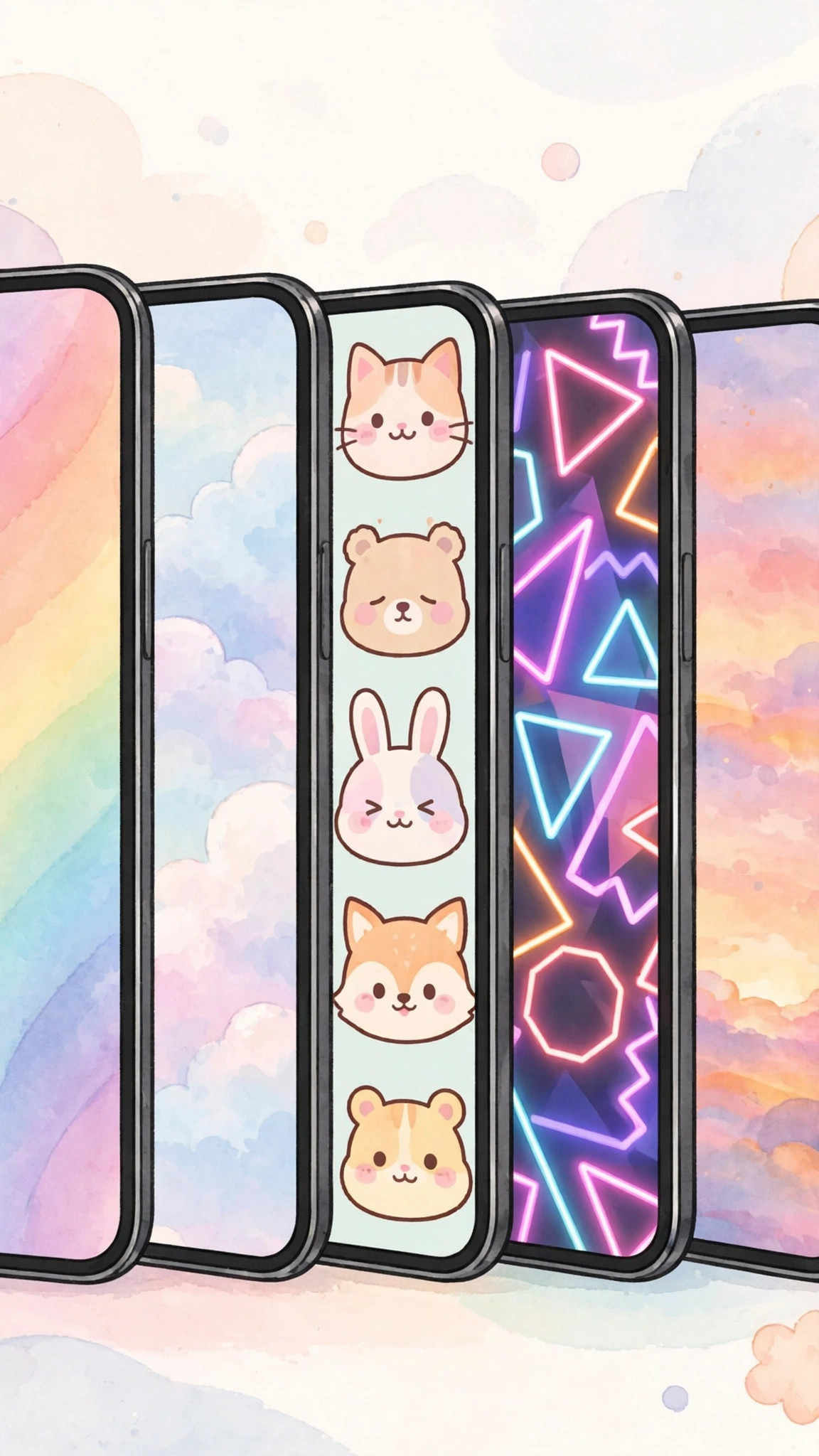
Download your favorites from our collection and give your Android a whole new personality today.